
Not every TikTok is a video. A huge slice of the app is now photo mode: swipeable carousels of still images set to music, used for everything from outfit rundowns to recipes to fan edits. The problem comes when you want to keep one. Screenshotting a slideshow feels quick, but it quietly wrecks the image quality and stamps the app’s buttons all over your save. This guide explains what TikTok photo mode really is, why screenshots come out worse than the original, and how to pull every image at full size plus the soundtrack as an MP3.
What TikTok photo mode actually is
Photo mode, sometimes called a photo slideshow or carousel, lets creators post a set of still images instead of a single video. You swipe left and right to move through the pictures, and TikTok plays a song underneath the whole set. It behaves like a video in your feed, with likes, comments, and a sound attached, but it is built from individual photos rather than moving footage.
That distinction matters when you try to save one. A normal video is a single file. A slideshow is a bundle: several separate images plus one audio track. When you screenshot, you are only capturing whatever is on the screen at that moment, flattened and compressed, and you have to do it once per image. The original photos are sitting there at full resolution, but the app never hands them to you directly. Understanding that the images and the sound are separate pieces is the key to saving them properly.
Why screenshots come out worse than the original
A screenshot seems like the obvious move, but it works against you in three specific ways. Once you see them, it is hard to go back to screen-grabbing slideshows.
- Double compression. The creator’s image was already compressed once when TikTok processed it. Your screenshot re-encodes that on-screen version a second time, so you are saving a copy of a copy. Fine detail, gradients, and text edges get softer each pass.
- UI overlays. A screenshot captures everything, including the username, caption, music title, and the like, comment, and share buttons stacked down the side. You end up cropping afterward, which throws away even more of the picture and rarely lines up cleanly.
- Display-capped resolution. A screenshot can only ever be as sharp as your phone screen. If the original photo is larger than your display, and it usually is, the screenshot throws that extra resolution away. The real file is bigger and cleaner than anything your screen can show.
Add it up and a screenshot gives you a shrunken, twice-compressed, button-covered version of an image that exists in a much better state. If you plan to use the picture for anything, that gap is worth closing.
How to save every image full size
Instead of grabbing the screen, you copy the slideshow link and let a tool fetch the original photos for you. Our TikTok photo downloader reads the post, pulls each image at its full resolution, and lets you save them one by one with no watermark and no interface clutter baked in. It runs in your browser, so there is no app to install and no login.
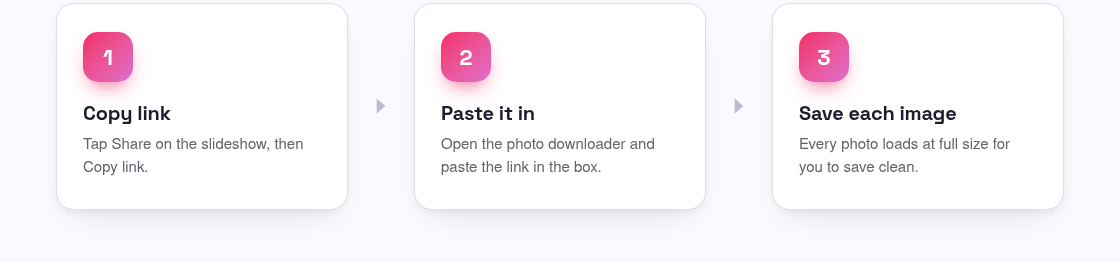
- Open the photo slideshow in the TikTok app and tap the Share arrow on the right side.
- Tap Copy link. This copies the post’s URL to your clipboard.
- Open the photo downloader and paste the link into the box.
- Tap download. The tool loads every image from the slideshow at full size.
- Save each image you want to your device. Because these are the original files, they land clean, sharp, and free of any on-screen buttons.
You save the pictures individually rather than as one packaged file, which means you can grab only the ones you actually want. Every image comes through at the resolution the creator uploaded, not the shrunken version your screen displays. One honest limit: this works for public slideshows only. Private or deleted posts are not accessible to any tool, and that is by design.
Getting the soundtrack as an MP3
The song under a slideshow is often half the appeal, and it is a separate piece from the images. If you want the audio on its own, you save it as an MP3 rather than trying to capture it through the photos. The process mirrors the image steps: copy the same slideshow link, then run it through the audio tool.
- Copy the slideshow link from the Share menu, exactly as you did for the images.
- Open the TikTok to MP3 tool and paste the link.
- Tap download and save the audio file to your device.
Now you have both halves: the full-size images and the track that played over them. If you are rebuilding the slideshow somewhere else or just want the song to listen to, having the MP3 separately is far more useful than a screen recording with the pictures flashing past.
What people actually use saved slideshows for
Full-size images are worth the small extra step because of what you can do with them once they are clean. A few common reasons people save photo mode posts:
- Wallpapers. Phone and lock-screen wallpapers need every pixel they can get. A compressed, button-covered screenshot looks rough blown up to fill a screen, while the original image fills it cleanly.
- Recipes and how-tos. A lot of cooking and craft creators put ingredients, steps, or measurements directly on the images. Saving the real files keeps that text readable instead of blurring it into a screenshot smudge.
- Mood boards and references. Designers, decorators, and anyone planning a look pull outfit, interior, or art images into a board. Clean source images make the board look intentional rather than pieced together from grabs.
Whatever the use, keep the creator in mind. Saving images for your own reference, wallpaper, or planning is one thing. Reposting someone’s photos as if they were yours is another, and that is on you, so check our terms and credit the original creator when you share. If you also grab regular videos, the same clean-file thinking applies through our main TikTok downloader, which pulls the original un-watermarked file rather than a screen capture.
Frequently asked questions
Can I download all the images in one file?
The tool loads every image from the slideshow, and you save the ones you want individually rather than as a single packaged file. That lets you keep only the pictures you actually need, and each one arrives at full original resolution.
Will the saved photos have a watermark or the TikTok buttons on them?
No. Because the tool pulls the original image files rather than capturing your screen, they come through clean, without the username, caption, or the like and share buttons that a screenshot would include.
How do I also get the song from the slideshow?
Copy the same slideshow link and run it through our TikTok to MP3 tool. It saves the audio track on its own, so you get both the full-size images and the soundtrack as separate files.
Can I download photos from a private account?
No. Only public posts are accessible. Private or deleted slideshows cannot be reached by any tool, because that content is not shared outside the app in the first place.
Do I need an app or account to save a slideshow?
No. The photo downloader runs in your browser. There is nothing to install and no login, so you just paste the link and save the images.