

You found a TikTok you love and you want to spread it around. The Repost button lets you do exactly that: it pushes someone else’s video into your followers’ For You feeds without you having to film, edit, or upload anything. It is TikTok’s version of a retweet. This guide explains what reposting really does, how to do it, how to undo it, and how it differs from features like Stitch and Duet. It also clears up one thing people get wrong constantly: reposting does not save the video to your phone.
What the Repost button actually does
When you repost a video, you are recommending it to the people who follow you. TikTok may then show that video in your followers’ For You feed with a small label that says you reposted it. You are not creating a new post and you are not copying the video. The original creator keeps all the views, likes, and credit. Think of it as a signal boost: your network sees something you thought was worth watching.
A few things worth knowing up front. Reposts do not sit on your main profile grid next to your own uploads, so your regular content stays clean. Your followers can see what you reposted, and depending on your app version you may have a separate Reposts tab. In newer versions of the app you can also attach a short thought or comment to a repost, though that option has not rolled out to every account yet.
How to repost a video on TikTok
Reposting takes about two taps. Here is the exact flow inside the app.
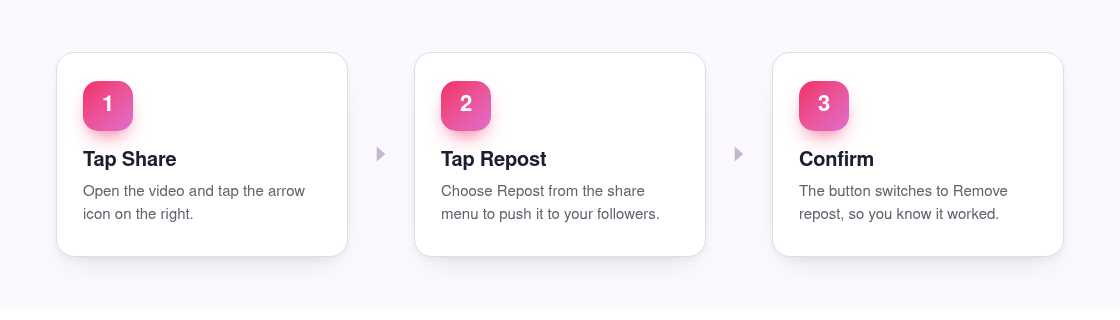
- Open the TikTok video you want to share and let it start playing.
- Tap the Share icon on the right side of the screen, the arrow that also handles sending and saving.
- In the row of options, tap Repost. The button usually sits near the front of the share menu.
- If your app supports it, add a short comment or thought, then confirm.
- You are done. The button now reads Remove repost, which is how you know it worked.
There is no separate confirmation screen for a basic repost, so it happens the instant you tap. That is handy, but it also means you can repost by accident, which brings us to undoing it.
How to undo or remove a repost
Removing a repost uses the same menu you used to create it. Nothing is permanent, and your followers stop seeing it in their feed once you pull it back.
- Open the same video you reposted.
- Tap the Share icon again.
- Tap Remove repost. The label flips back to Repost, confirming it is gone.
If you cannot find the video again, check your Reposts tab if you have one, or scroll your recent activity. Once removed, the repost disappears from your followers’ feeds and no longer counts as something you shared.
Repost vs Stitch, Duet, and duplicating a video
People mix these up because they all involve someone else’s video, but they do very different jobs.
- Repost recommends the original clip to your followers. You add nothing except, in some versions, a short note. No new video is created and it does not live on your profile grid.
- Stitch lets you clip a piece of another video and attach your own footage after it, creating a brand new post that you own.
- Duet plays the original video side by side with your reaction or performance, again as a new post on your profile.
- Duplicating or re-uploading means saving a video and posting it as if it were yours. That is not a real feature, it strips credit from the creator, and it can breach TikTok’s rules. Reposting exists precisely so you do not have to do this.
Short version: use Repost to share, and use Stitch or Duet when you actually want to add your own creative spin.
Why you might not see the Repost button
If the Repost option is missing from your share menu, you are not doing anything wrong. TikTok rolls features out gradually, so the button appears for some accounts before others. Availability can depend on your region, your app version, and the type of account you have. A few things worth trying:
- Update the app to the latest version from your app store.
- Restart the app so any new features finish loading.
- Check that the creator has not disabled sharing on that specific video.
Even after all that, some accounts still will not have it yet, and there is no way to force it on. That is normal, and it usually arrives in a later update.
Reposting shares it, but it does not save it
Here is the confusion worth clearing up. A repost lives entirely inside TikTok. It does not put a file on your phone, it does not give you an MP4, and if the original creator deletes the video, your repost disappears with it. If your real goal is to keep a copy you can rewatch offline, edit, or post elsewhere, reposting is the wrong tool.
That is where a downloader helps. Our free TikTok downloader pulls the original file straight from TikTok and hands you a clean HD MP4 with no watermark stamped across it, no app to install, and no login. Paste the link, tap download, and the video is on your device. If you only want the audio, the TikTok to MP3 tool saves the sound on its own, and photo-mode slideshows come through the photo downloader as real images. If you have ever wondered why saving inside the app leaves that moving watermark on the clip, our watermark guide explains what is happening and how to get a clean version instead.
One honest limit: this only works for public videos. Private or deleted content is not accessible to anyone outside the app, and no tool can change that. And whatever you save, respect the creator. Downloading for personal viewing is one thing, but reusing someone’s work is on you, so check our terms and give credit where it is due.
Frequently asked questions
Does the creator know when I repost their video?
Reposting is a public action tied to your account, so it is visible to your followers and can show up in activity feeds. There is no private way to repost, but it is not framed as a direct notification the way a comment or a like can be.
Will my reposts show up on my profile?
Reposts do not appear on your main video grid alongside your own uploads. Depending on your app version you may have a separate Reposts tab, but your regular profile stays focused on the content you actually created.
Can I repost my own video?
The Repost button is built for sharing other people’s content to your followers. For your own videos it makes more sense to pin them, post them again, or share the link directly, since reposting your own work does not add much.
How do I download a TikTok instead of reposting it?
Copy the video link from the Share menu, open our downloader, paste the link, and save the clean HD MP4. That gives you an actual file on your device, which a repost never does. It works for public videos only.
Can I save a public story the same way?
Yes. Public stories are not built to repost, but you can grab them with the story downloader while they are still live. Private stories and expired ones are not accessible.