

Downloading a TikTok on your computer is faster than most people expect, and you do not need to install anything. If you work on a laptop or desktop, whether it runs Windows or macOS, you can grab a clean HD copy of a public video straight from your browser. This guide walks through copying the link on tiktok.com, pasting it into our downloader, finding the saved file on your machine, and pulling the audio or photo-mode images when you need those instead. By the end you will have a watermark-free MP4 sitting in your Downloads folder, ready to drop into a video editor.
Copy the video link from tiktok.com in your browser
Everything starts with the link. On a computer you are usually watching TikTok through the website rather than the app, so the address is easy to reach. Open tiktok.com in Chrome, Edge, Safari, Firefox, or any browser you like, and find the video you want to save. The video only has to be public. If a profile is private or the clip has been deleted, no downloader can reach it, because the file simply is not served to the public anymore.
- Open the video on its own page, or hover over it in a feed until the share options appear.
- Click the Share icon (the curved arrow) and choose Copy link.
- If you do not see a Share button, click into the address bar at the top of the browser and copy the full URL there instead.
Both methods give you the same thing: a link like https://www.tiktok.com/@username/video/1234567890. That is all our tool needs to find the original file.
Paste the link into the downloader
With the link on your clipboard, head to our TikTok downloader in another browser tab. There is nothing to sign up for and no software to install, which is the main reason a browser-based tool beats a desktop program for a one-off save.
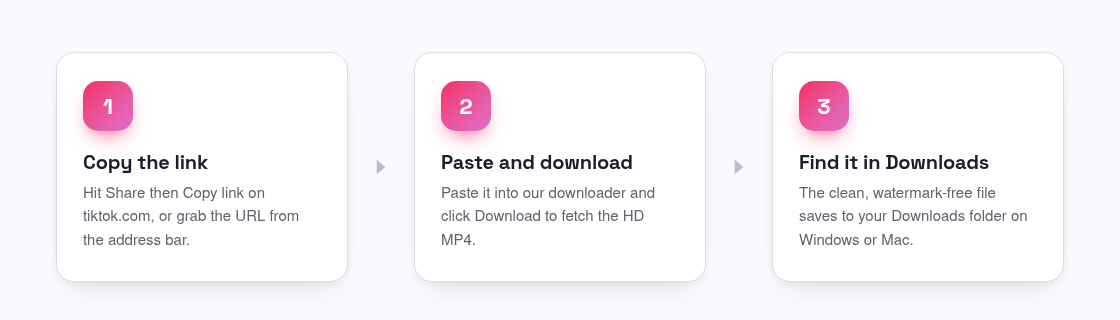
- Click the input box on the page and press Ctrl + V on Windows or Command + V on Mac to paste the link.
- Press the Download button next to the box.
- Wait a second or two while the tool fetches TikTok’s original, un-watermarked file.
- Choose the HD MP4 option, then click it to start the save.
The download is real extraction, not a screen recording, so the picture stays sharp and there is no watermark stamped across it. If you are curious about why the app version leaves that logo behind, our guide to removing the TikTok watermark explains what is happening under the hood.
Where the file saves on Windows and Mac
Once you click to save, the browser handles where the file lands. Unless you have changed your settings, both operating systems drop it in the same obvious place.
- Windows: the MP4 goes to
C:UsersYourNameDownloads. Open File Explorer and click Downloads in the left sidebar, or press Ctrl + J in your browser to jump straight to the finished file. - Mac: the file lands in your Downloads folder, reachable from the Finder sidebar or the Downloads stack on the right side of the Dock. In most browsers Command + J or the download arrow near the toolbar shows it too.
If you want the file somewhere specific, right-click the download option and choose Save link as (or turn on “Ask where to save each file” in your browser settings). That lets you pick a project folder on the spot instead of digging the clip out of Downloads later.
Save the audio or photo-mode images instead
Sometimes the video is not what you are after. The same paste-and-download flow works for two other formats, so you do not have to hunt for a different site.
- Just the sound: use our TikTok to MP3 tool to pull the audio as a clean MP3. This is handy for saving a song, a voiceover, or a sound you want to reuse.
- Photo posts: for a slideshow-style post, the photo downloader saves the still images so you can keep each picture at full quality.
- Public stories: if you need a public story clip, the story downloader handles those the same way.
All of these run in the browser, so the “no software to install” rule holds no matter which format you pick.
Drop the clean file into a video editor
A watermark-free MP4 is the format most editing software wants, which is exactly why saving on a computer is worth it. Because the file has no logo baked into the corner, you can crop, trim, and add your own captions without a TikTok stamp fighting your layout.
- Open your editor, such as CapCut for desktop, DaVinci Resolve, Premiere Pro, or the built-in Photos app on Mac and Clipchamp on Windows.
- Drag the MP4 from your Downloads folder straight onto the timeline, or use the editor’s Import button.
- Trim, add your own audio or text, and export at whatever resolution your project needs.
One reminder before you publish anything: the video still belongs to whoever made it. Downloading for personal use, offline viewing, or reference is one thing, but reuploading someone else’s work as your own can break TikTok’s rules and copyright law. Our terms cover this in plain language, and the short version is to credit creators and get permission when you share.
Frequently asked questions
Do I need to download an app or program to save TikToks on my computer?
No. The whole process runs in your web browser on Windows or Mac. You copy the link on tiktok.com, paste it into our tool, and the file saves to your computer. There is nothing to install and no account to create.
Where does the downloaded video go on my PC or Mac?
By default it saves to your Downloads folder: C:UsersYourNameDownloads on Windows and the Downloads folder in Finder on Mac. Press Ctrl + J or Command + J in your browser to open the finished file quickly.
Will the file have a TikTok watermark?
No. The tool fetches TikTok’s original file, so the HD MP4 comes without the moving watermark the app adds. That makes it much cleaner to use inside a video editor.
Can I download a private or deleted video?
No. Private and deleted videos are not served to the public, so no downloader can reach them. Only public videos, photo posts, and public stories can be saved.
Can I save just the sound instead of the video?
Yes. Paste the same link into our TikTok to MP3 tool and it pulls the audio as an MP3 file, which saves to your Downloads folder just like the video does.